
Type the chords. Hear the band.
Mao Midi turns a chord chart into a full backing band: drums, bass, keys and pad, playing together in the style you choose. Write a song, try it in 250 styles, then play along or export it as audio to share.
It’s free, it’s for Windows, and it’s in public beta.
Windows 10 or 11, 64-bit · Version 0.9.1 beta · 82 MB
What it does
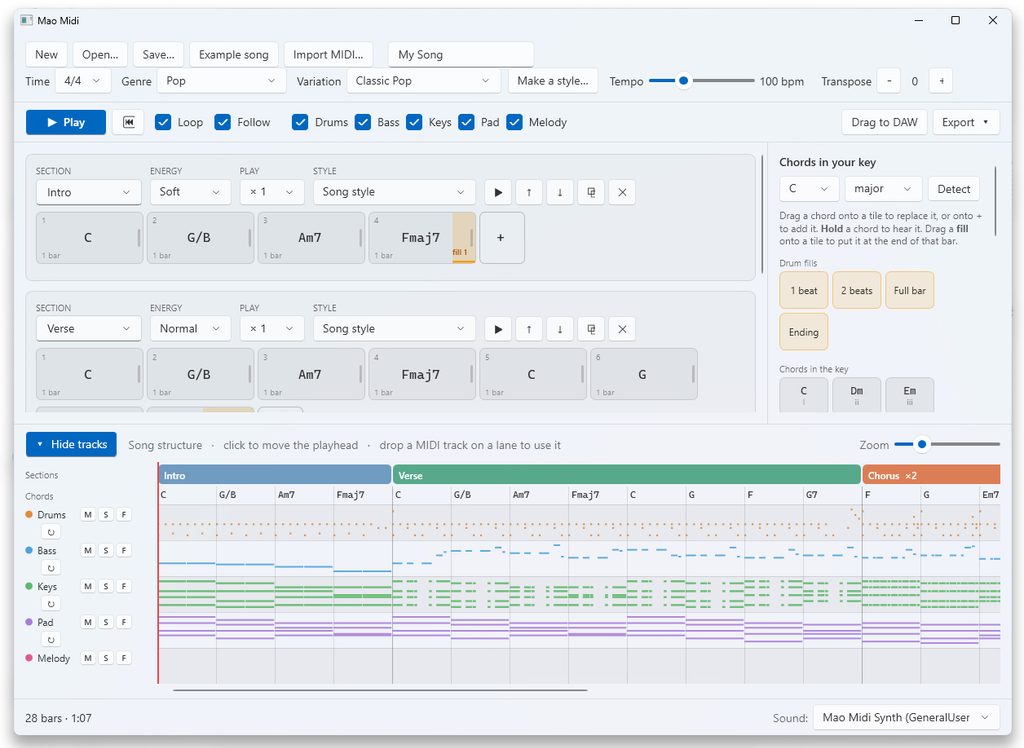
Write songs fast. Type chords straight into tiles (Am7, F/C, G7sus4) or drag them in from a list of chords in your key. Drag a tile’s edge to make a chord longer or shorter. Build your song from sections like Intro, Verse and Chorus.
250 styles in 20 genres. These include Pop, Rock, Funk, Jazz, Blues, Gospel, Bossa Nova, Latin, Reggae, Country, Electronic, Metal, Punk, Cinematic and Game Music. There are 3/4 waltzes and 6/8 grooves as well as 4/4.
Shape the energy. Every section can be Soft, Normal, Big or Max. Place your own drum fills and endings exactly where you want them.
Paste a chord sheet. Copy chords and words from a website or songbook and paste them in. Mao Midi turns the [Verse] and [Chorus] headers into sections and the chords into tiles, ready to play.
Bring in your own MIDI. Drop in a MIDI file and Mao Midi works out the tempo, the key, the chords and the song’s sections. Your parts play exactly as recorded, and Mao Midi fills in the instruments you don’t have. Import every track, so strings, brass and second guitars each keep their own sound. Change a chord and your imported notes move to fit it. If Mao Midi guesses the sections wrong, drag the section markers to fix them, or rename, add and remove them.
Make your own styles. Turn any song into a style and use it on everything else you write.
Mix and practise. Open the full-screen Tracks and mixer window to see every track, with a fader, level meter, instrument choice and Mute, Solo and Focus for each one. Turn on Follow and the section being played stays at the top of the screen, so you can play along.
Share it. Export a CD-quality WAV to send to your band or upload, or MIDI to finish the song in your DAW. You can also drag the song straight into your DAW.
Ready to play. Mao Midi comes with a full General MIDI sound set, so you don’t need any extra software or sound cards. You can also send the music to your own synths or virtual instruments over MIDI.
What’s new in 0.9.1
- Tracks and mixer window (Ctrl+M): every track full-screen, with faders, meters and a master fader. Levels are saved with the song.
- Change any instrument: all 128 General MIDI sounds, plus drum kits.
- Paste a chord sheet (Ctrl+V) to make a song from chords over words.
- Import all tracks from a MIDI file, each with its own sound.
- Fix the sections: drag section markers, and rename, add or remove them with a right-click.
Download
| Installer (recommended) | MaoMidi-0.9.1-beta-Setup.exe, 81.7 MB |
| Portable (unzip and run) | MaoMidi-0.9.1-beta-Portable.zip, 83.4 MB |
| Manual | Web page or PDF |
Version: 0.9.1 beta
Needs: Windows 10 or 11, 64-bit. Nothing else needs installing. There’s no Mac version yet.
Installing
- Download the installer and open it.
- If Windows shows a blue box saying “Windows protected your PC”, click More info, then Run anyway. Mao Midi is new and isn’t digitally signed yet, so Windows doesn’t recognise it.
- Follow the steps. You don’t need to be an administrator.
- Open Mao Midi from the Start menu and click Example song to hear it straight away.
The manual comes with the app: press F1 in Mao Midi, or open Mao Midi Manual from the Start menu.
To uninstall, go to Windows Settings → Apps and find Mao Midi. Any styles you’ve made are kept.
Portable version: unzip it anywhere, even on a USB stick, open the Mao Midi folder and double-click MaoMidi.exe. Keep the folder’s contents together.
Beta notes
This is a beta, so please tell me about anything odd you hear or see, and anything you’d love it to do. (Add your contact email or form here.)
- Undo isn’t built in yet. Save your song before big changes.
- Mute, Solo and Focus settings aren’t saved with the song.
Privacy
Mao Midi doesn’t connect to the internet and doesn’t collect any data. Your songs stay on your computer.
Questions
Is it really free?
Yes. It’s free for any personal or commercial use, but please don’t sell or upload the app
Can I use the music I make with it commercially?
Yes. The music you make is yours. The built-in sounds (GeneralUser GS) can be used for commercial music.
Will it play my keyboard or plugins?
Mao Midi plays its own built-in sounds, but you can pick any MIDI output at the bottom right, such as a hardware synth or a virtual MIDI cable into your DAW. You can also export MIDI, or drag the song into your DAW.
Does it work on Mac or Linux?
Not yet. It’s Windows only.
My antivirus complained.
New, unsigned programs sometimes get flagged. You can check your download is genuine by comparing its fingerprint (SHA-256) with the one below. In Windows PowerShell, run Get-FileHash followed by the file’s name.
Checksums (SHA-256)
MaoMidi-0.9.1-beta-Setup.exe:E557A252A611BCD1CA217D76D84C0AC5261C0A4197A45427E052E1C0B5F9CC7F
MaoMidi-0.9.1-beta-Portable.zip:A241E2870E2790E4AB844EA8255904077D9928A1A8CB33CFED3E76BB8C862773
Credits
- Sounds: GeneralUser GS by S. Christian Collins.
- Synth engine: FluidSynth (LGPL 2.1).
- MIDI files: DryWetMIDI by Maxim Dobroselsky (MIT).
The full licences are included with the app (About → Open licences folder).